
PRINT AND CUT ISSUES WHEN USING THE CUTTING MASTER PLUG-IN
Note: Troubleshooting-steps below are assuming that the end user already knows the proper workflow/steps on how to create and cut a print and cut job.
Please make sure of the proper workflow first by watching our instructional videos for your cutter.
IF THE END-USER HAS SUCCESSFULLY CREATED AND HAS PREVIOUSLY CUT A PRINT AND CUT JOB BEFORE, PLEASE PROCEED WITH THE INSTRUCTIONS BELOW:
The print and cut feature is mainly controlled by software, it is the software that tells the vinyl cutter where to expect to find registration marks. There are no settings in the cutters menu that need to be enabled in order to make the cutter read marks (*). With this said-proper bidirectional from cutter to PC- PC to cutter is vital. The following steps help the end users isolate the Cutter/Connection/PC (file, computer, workflow).
*ISM mode and sensor offset adjust are menu options that can help with reg mark scanning and calibration. OFF by default, see user’s manual for details.
ISSUES & SOLUTIONS
Not Reading Marks
It is rare that an Advanced Registration Mark System (ARMS) is defective, before calling tech support please isolate the cutter(sensor) by performing an ARMS test: necessary tools needed will be the Graphtec plotting pen, or blade if prints are on vinyl, PDF FILES:
ARMS test_type 1 (82 KB) or ARMS test_type 2 (82 KB)
This can be printed on a letter size bond paper of desktop printer.
IF SUCCESSFUL
Your sensor (cutter) is working properly.
Continue with the 4-STEPS below.
IF UNSUCCESSFUL
If it fails, please reset the cutter back to factory in step-2 below and try again.
IMPORTANT: If using 3rd party software like Onyx or Flexi Sign, etc. Please make sure the software is recent enough to include the driver for your model, if the ARMS test works contact Tech Support of the software being used to confirm proper workflow as Graphtec can’t help with this. Another option is to try a small print and cut job from Cutting Master out of Adobe or Corel, if successful contact then your software manufacturer for support.
STEP 1:
NOT ENOUGH SPACE AROUND THE IMAGE WHEN LOADING THE PRINT JOB TO THE CUTTER
SOLUTION:
Making sure you have the following spacing around the image when loading the print job on the cutter. If there is not enough spacing from the push roller to mark, expand mode can be enabled to widen the cut area.
STEP 2:
INCORRECT CONFIGURATION OF MENU OPTIONS
Your print & cut is processed and controlled by software, so there is no need to modify or enable any option in the cutters ARMS menu. If settings are modified by accident it can cause misreading, offset, errors. If that happens please watch the below video to reset the cutter to factory default (Please note: your cutting conditions such as speed, force, etc. will be deleted).
STEP 3:
WITH GLOSSY MEDIA/FINISH, THE CUTTER MIGHT DISPLAY ERROR MESSAGES

STEP 4:
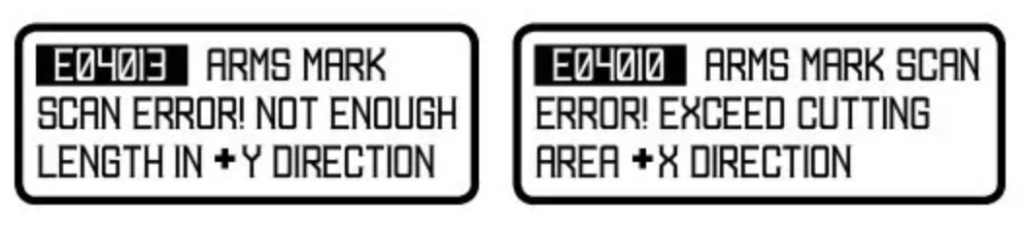
ERROR MESSAGE WHILE ATTEMPTING TO SCAN
SOLUTION:
A) Make sure the print is loaded in the same orientation as the cut preview of the software, when using Cutting Master plug in is usually right side up.
B) Check push roller regarding spacing if error displayed is regarding Y direction, go back and check Step 1 Spacing Rules
C) if X-direction related error message please check the page length setting in the cutter: Menu > Media > Page Length, set to the highest amount (Max. 1048in), press “Fast” to increase the amount.
Note: both b and c have to do with a mismatch in scale (size difference between print and file), it is important to know this detail. Offscale error, or the error codes above are treated the same.
Note: when receiving these error codes, or scaling errors also check the Command sSetting on the plotter: MENU, IF, Command, HPGL or GPGL. All Graphtec software works on GPGL. FlexiSign for example uses HPGL. Please set accordingly.
D) If the issue remains and other files cut fine recreate the registration marks on the file and print again – when files are exported or saved to be opened and processed on a different computer, the registration mark layers can become corrupted. There are other reasons that files can become corrupted.
Offset Issues
When the cut line does not line up properly, it can be a simple fix depending on how the misalignment looks like.
-
If all the cut lines are moved to one side either left, right, away, or closer to you while standing in front of the cutter that will be a simple calibration.
-
If the cut line offset is going in different directions, the cause may be outside of the cutter. Follow these 3-recommendations:
#1 Recommendation
The registration mark method (4 marks or Segmented Marks) can affect the cutting accuracy. 4-marks should be used on short job, less than 40″ in length, for a job greater than 40″ in length, segmented marks should be used. A set of segmented marks every 20″ is recommended.
#2 Recommendation
If the offset is uniform check and adjust the cutter calibration
Click >> Learn how to adjust sensor offset via the cutter control panel
#3 Recommendation
In FC8000/8600 models, the cutline is off about 1/4 inch in the X-direction, please check the position of blade-holder on the cutting head. Make sure it is in position 1 for kiss cutting.

IMPORTANT: If using 3rd party software like Onyx or Flexi, Caldera. If on Ethernet-connection, please connect via USB (just for test purposes), make necessary changes on the port setting of the software and try again.
If you still have an issue, please try a job directly from Adobe Illustrator/CorelDRAW using Cutting Master Plug-in, or Graphtec Pro Studio/Graphtec Studio.
If successful cutting from the suggested Graphtec software, please contact your 3rd party software for support.
If un successful or same results cutting from the suggested Graphtec software please contact Graphtec Technical Support